Create your own Microsoft Word Shortcuts

Keyboard Shortcuts

Shortcut Key Assignments (Commands)

To speed up the repetitive task of formatting reports, create shortcuts on your computer in its Normal template:

  • Open MSWord.
  • At the top left of your screen, click on the File tab.
  • A menu appears with three panes.  On the left are the options, in the centre is Information About the document, and on the right are the document Properties
  • In the left-hand section, at the bottom, select the Options option. 
What you get when you select the File tab.
  • The Word Options dialog box pops up.  
  • In the left pane, select the Customize Ribbon option.
  • The right pane changes into two panes.  Below the right-hand one is a Keyboard Shortcuts label.  
  • Click on the Customize… button next to it.
  • The Customize Keyboard dialog box pops up.  
  • In the Categories list box on the left, drag the scrollbar all the way down so that you can select the All Commands option.
  • In the Commands list box on the right, scroll down to select the AutofitContent option, which makes a table fit to its contents, instead of being as wide as the page.
  • Place your cursor in the Press new shortcut key edit box and enter the shortcut – I suggest Alt+Shift+A for AutofitContent.
  • Click on the Assign button at bottom left.
  • Repeat for all the COMMANDS listed below.
    • COMMAND AutofitWindow
      Description Fit the table between the left and right margins
      Shortcut = Alt+Ctrl+Shift+A
    • COMMAND FormatParagraph
      Description Change the appearance of the selected paragraph/s
      Shortcut = Alt+P
    • COMMAND FormatStyle
      Description Apply, create or modify the style
      Shortcut = Alt+S
    • COMMAND InsertCrossReference
      Description Insert a cross-reference
      Shortcut = F2
    • COMMAND InsertField
      Description Insert a field
      Shortcut = Alt+Ctrl+Shift+F
    • COMMAND InsertNewComment
      Description Insert a comment
      Shortcut = Alt+Ctrl+M
    • COMMAND InsertSectionBreak
      Description Start a new section
      Shortcut = Alt+Return
    • COMMAND ParaKeepWithNext
      Description Keep a paragraph and the following paragraph on the same page
      Shortcut = Alt+K
    • COMMAND ParaPageBreakBefore
      Description Make the current paragraph start on a new page
      Shortcut = Alt+Ctrl+Shift+P
    • COMMAND TableDeleteColumn
      Description Delete a table column
      Shortcut = Alt+Shift+C
    • COMMAND TableDeleteRow
      Description Delete a table row
      Shortcut = Alt+Shift+R
    • COMMAND TableDeleteTable
      Description Delete a table
      Shortcut = Alt+Ctrl+Shift+D
    • COMMAND TableToOrFromText
      Description Convert a table to text or text to a table
      Shortcut = Alt+V
    • COMMAND ViewHeader
      Description Display the header in page layout view
      Shortcut = Alt+H

Go back to the top
Go to the Manual contents
Go to the previous lesson
– Microsoft terminology
Go to the next lesson – Navigation around a document
Click here to download a PDF of this lesson.

Word Units of Measurement

Setting the unit of measurement

Microsoft Word’s unit of measurement follows the regional settings in Windows but can be changed in Word. Go to FileOptionsAdvancedDisplay, as shown in the Word Options dialog box below.

Setting units of measurement in Microsoft Word
Setting your units of measurement

Microsoft Word’s Tables of Figures

You can have separate lists or tables of the figures, pictures, or tables in your Word document, similar to a table of contents. The default is a table of figures. But MS-Word can only generate a table of figures if you have previously inserted MS-Word’s captions to mark the figures. Click here to find out how to handle captions. This blog post tells you how to insert a table of figures and how to update it.

Inserting a Table of Figures

Put your cursor where you want your table of figures to be.

  1. Go to the References tab, run your eye along the bottom of the ribbon to the Captions block, and click the Insert Table of Figures button. (Note: If your Word document is not maximized, the Insert Table of Figures option might not be visible. Some minimized views show only the Insert Table of Figures icon.)
  2. The Table of Figures dialog box pops up.
  3. You can change the font and paragraph format by unticking the boxes on the face of the dialog box – but you do not usually need to untick any of them.
  4. The Options… button. If you did not use the caption style for your figure captions, you can tell Word what style you did use by clicking on the Options… button.  The Table of Figures Options dialog box pops up.
  5. The Modify… button. Word uses the Table of Figures style for the entries in your list of figures. You can change the styles format by clicking on the Modify… button. The Style dialog box pops up, and asks you to select the appropriate style for your index or table entry. It has another Modify… button and, if you click on it, the usual Modify Style dialog box pops up.
  6. Make the changes you want. I advise setting a left tab of about 2,5 cm.
  7. Click the OK button or press the Enter key as many times as necessary to get out of the dialog boxes.

Word then searches the document for your captions and automatically adds a list of figures, sorted by figure number and page number.

Updating a table of figures

If you add, delete, change, or move captions, you need to update the table of figures to reflect your changes:

  1. Click in the table of figures in your document. The entire table will be highlighted.
  2. Press F9 or click References > Update Table. (Note: Update Table only becomes an option when you have your cursor in the table of figures.)
  3. The Update Table of Figures dialog box pops up.
  4. Select Update page numbers if you need to adjust the page numbers.
  5. Select Update entire table if you have moved figures or altered captions.
  6. Click the OK button or press the Enter key.

Tip: Do not try to type changes in the table of figures. Make changes to the captions and then put your cursor in the table of figures and press F9 to make them reflect there.

Microsoft Word’s Captions

Captions in documents

Figure 1. Captions are important

A caption accompanies a figure, table, equation or other object, such as a box or a photograph. Figure captions are the default.

A caption usually has three components: a customisable label (like “Figure”, “Table”, “Equation”) plus an ordered number or letter that Word inserts for you (e.g., “1, 2, 3…” or “a, b, c…”), followed by a description.

The advantages to using MS-Word’s caption fields are that, if you add, delete, or move captions, you can easily update the caption numbers all at once; and that you can list the captioned items; for example, in a table of figures or a table of equations.

Click here to open a PDF of the instructions below – with illustrations.

Changing a caption

There are different ways of inserting captions and formatting them, which you get by selecting buttons in the dialog boxes. I suggest you explore them to see what suits you. You can:

Manually positioning the figure and its caption

If you have your cursor in the paragraph above or below the figure when you click on Insert Caption, the Position textbox is greyed out, and it is up to you to keep the figure and its caption on the same page.

(To keep the figure and its caption on the same page, put your cursor in the first paragraph, go to the Home tab > Paragraph group > dialog box launcher > Line and Page Breaks tab > tick the box labelled Keep With Next.)

Back to top / Back to list of changes

Automatically positioning the figure and its caption

If you select the figure before you click on Insert Caption, the Position textbox is not greyed out, you can specify whether the caption is inserted above or below the figure.

Back to top / Back to list of changes

Excluding the word “Figure” from the label

If you just want the number to show in the caption, tick the box labelled Exclude label from caption.

Back to top / Back to list of changes

Changing the number format

To change the 1-2-3 numbers in figure labels to a-b-c or i-ii-iii, click on the Numbering button. The Caption Numbering dialog box pops up with the Format text box selected. Change the number by selecting from the Format drop-down list.

Back to top / Back to list of changes

Including the heading number with the figure number

You can include the chapter, section or heading number with the figure number (e.g., Figure II-1, Table 1-A). To do this, tick the box labelled Include chapter number. The greyed-out items below it are activated:

  • Click the down-arrow on the right of the Chapter starts with style label to see a drop-down list of styles. Select the style of the heading whose number you want to include; and
  • Click the down-arrow on the right of the Use separator label to see a drop-down list of punctuation. Select the punctuation you want between the chapter number and the figure number

Click on the OK button or press the Enter key.

Back to top / Back to list of changes

Formatting captions

After you have added a caption to your document, there will be a Caption style in the style gallery.

To change the formatting of all the captions in your document, right-click the Caption style and choose Modify.

The Modify Style dialog box pops up, as shown below. Many modifications to the font and paragraph are available in the Formatting group, and the effect of a change is shown in the Sample text. More modifications can be made by clicking on the Format button at the bottom left of the dialog box.

Click here to find out how to list your figures in a table of figures.

Back to top

Microsoft Word’s Tables of Figures from Captions

Tables of Figures and Figure Captions

MS-Word can add an automatic, updatable table of figures to your document.

But how? As my fellow editor said, “‘The last List of Figures I generated hyperlinked only one item on the list – the rest were not linked.”

This happened because MS-Word can only add a table of figures if you have previously inserted MS-Word’s captions to mark the figures. MS-Word can only ‘see’ its own captions; it does not detect manually inserted figure labels and so does not include them in the list of figures.

I have explained them in separate blog posts. One explains figure captions and the other explains how to list them in a table of figures. Click on the underlined words to go there.

Click here if you want to open a PDF that explains everything in one document- with illustrations.

Styles in the Ribbon

MS-Word Styles in the Ribbon

The Styles Gallery and the Styles Pane

A fellow editor asked, “Styles vary in order and appearance with some documents – I know how to modify their attributes, but how do I customise the ribbon?”

The appearance of the styles in Microsoft Word’s Styles Gallery is governed by the template in your current document. The order of the styles is governed by the priroty Word assigned to them.

It is possible to customise the order of the styles in the Styles Gallery and Styles Pane – but it is complicated, time-consuming and not worth the trouble.  Tony Jollans wrote a very detailed article that explains why.

Section Breaks 6 – Footnotes

Section Breaks, Part 6

How to restart footnotes at 1 in each section

In Word, if your document has 12 footnotes, they are numbered from 1 to 12 by default – but you can change the way they are numbered. Word allows you to specify both a starting footnote number and whether the numbering restarts in each new section of your document. This is how you make the changes:

  1. Select the References tab on the ribbon.
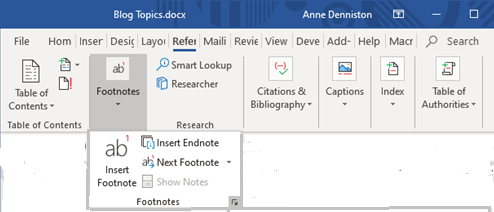
  2. Go to the Footnotes group and click the small downward-pointing arrow at the bottom-right corner (called the dialog box launcher), as shown below.
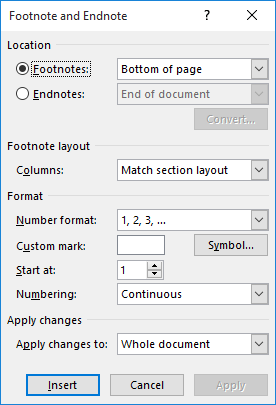
  3. Word launches the Footnote and Endnote dialog box, shown below with the default options.
  4. Make sure the Footnotes radio button is selected.
  5. Change the Start At value to reflect where you want Word to start numbering.
  6. Change the Numbering dropdown to reflect how you want Word to count your footnotes.
  7. If you are setting things up for future footnotes, click on the Apply button and then the Cancel button, otherwise click the Insert button to add a footnote mark at the current document location.