

Section Breaks, Part 6
How to restart footnotes at 1 in each section
In Word, if your document has 12 footnotes, they are numbered from 1 to 12 by default – but you can change the way they are numbered. Word allows you to specify both a starting footnote number and whether the numbering restarts in each new section of your document. This is how you make the changes:
- Select the References tab on the ribbon.
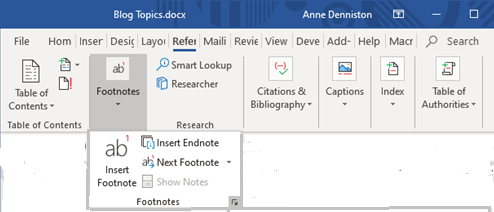
- Go to the Footnotes group and click the small downward-pointing arrow at the bottom-right corner (called the dialog box launcher), as shown below.
- Word launches the Footnote and Endnote dialog box, shown below with the default options.
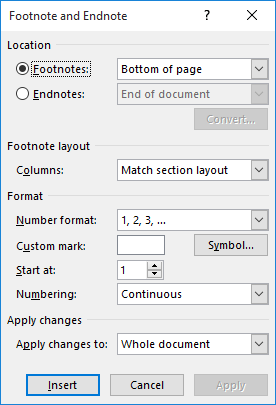
- Make sure the Footnotes radio button is selected.
- Change the Start At value to reflect where you want Word to start numbering.
- Change the Numbering dropdown to reflect how you want Word to count your footnotes.
- If you are setting things up for future footnotes, click on the Apply button and then the Cancel button, otherwise click the Insert button to add a footnote mark at the current document location.


